
If you work with PLCs, VFDs, sensors, or any Modbus device, you know the pain. You need to check a register value. You need to write a coil. But your laptop is back at the office — or buried in your bag.
Modbus Poll for Android solves that problem. It turns your phone into a Modbus master. Connect over Wi-Fi, read registers, write values, and troubleshoot devices right from the field.
No laptop needed. No cables. Just your phone and a Wi-Fi connection.
Table of Contents
What Is Modbus Poll?
Modbus Poll is an Android app that sends Modbus queries to electronic devices like PLCs, HMIs, drives, and sensors. It works as a Modbus master — meaning it sends requests and reads responses from your slave devices.
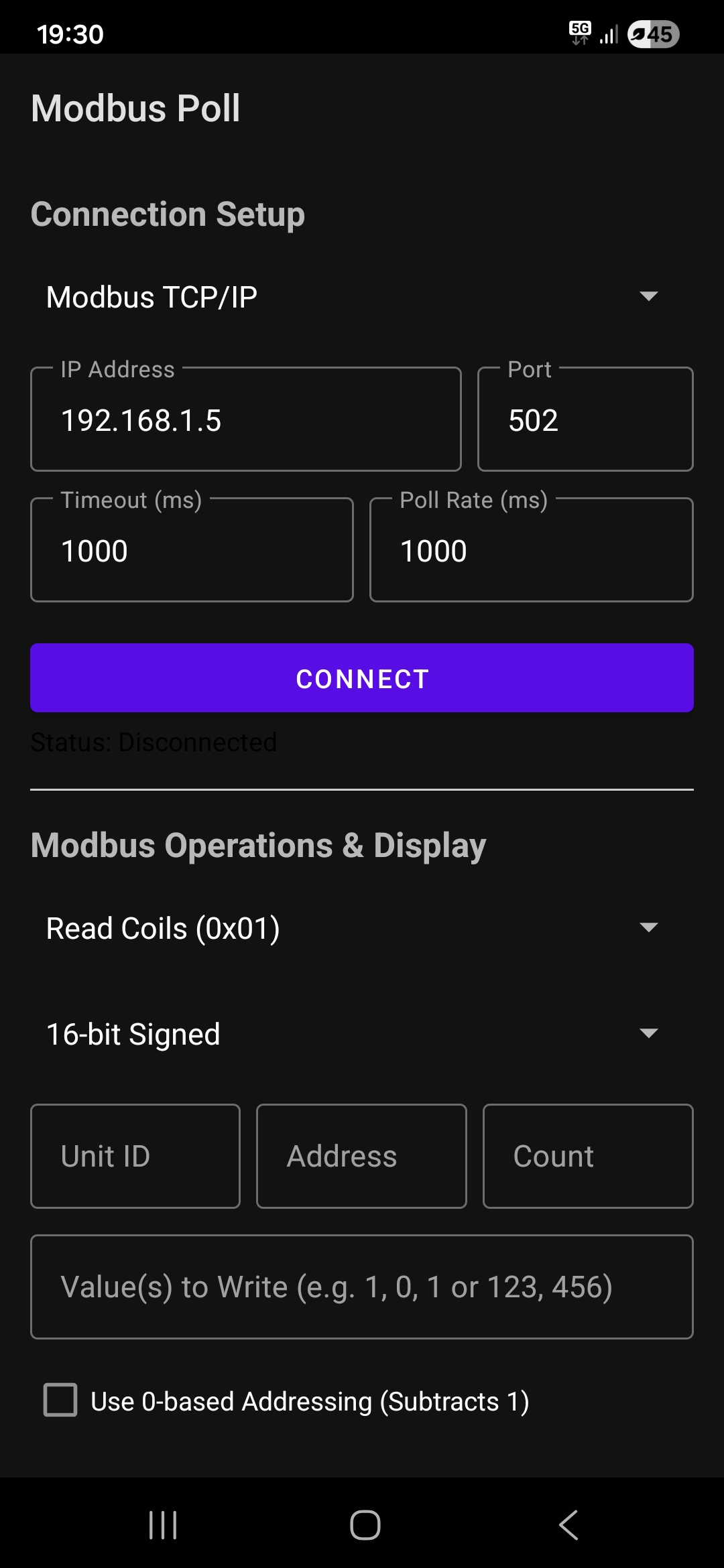
Think of it as a lightweight Modbus testing tool that fits in your pocket.
Supported Protocols
Most Modbus apps on Android only support basic TCP. Modbus Poll goes further. It supports four connection modes:
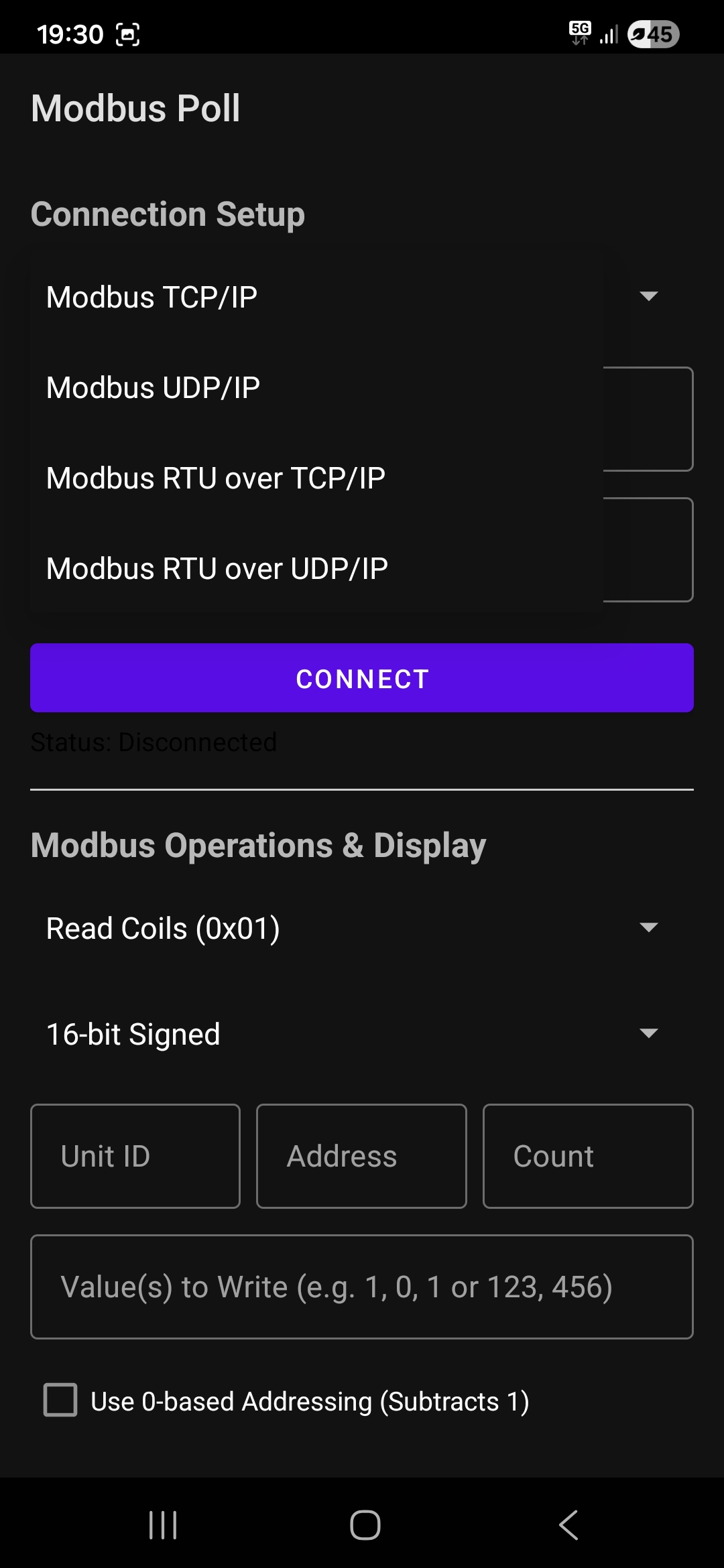
- Modbus TCP/IP — the standard choice for Ethernet-connected devices
- Modbus UDP/IP — faster, connectionless option for simple queries
- Modbus RTU over TCP/IP — for gateways that convert serial RTU to TCP
- Modbus RTU over UDP/IP — RTU framing over UDP connections
This means you can talk to almost any Modbus device on your network, no matter how it’s set up.
Connection Setup
Getting connected is simple. You enter four things:
- The IP address of your device (for example, 192.168.1.5)
- The port number (usually 502)
- A timeout value in milliseconds
- A poll rate in milliseconds
Hit Connect, and the app starts talking to your device.
Supported Function Codes
This is where Modbus Poll really stands out. It supports all the common Modbus function codes:
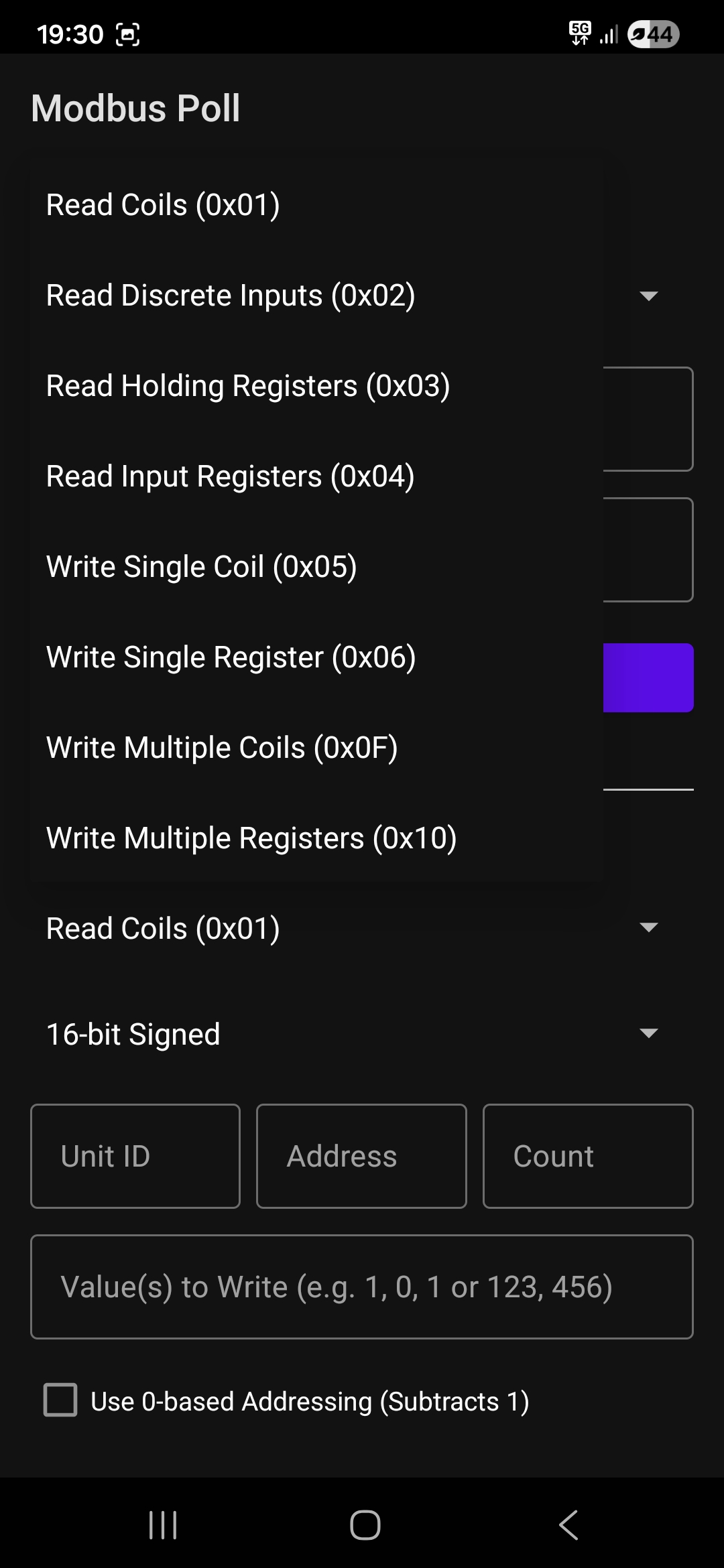
Read Functions:
- Read Coils (0x01) — read ON/OFF status of coils
- Read Discrete Inputs (0x02) — read ON/OFF status of inputs
- Read Holding Registers (0x03) — read register values
- Read Input Registers (0x04) — read input register values
Write Functions:
- Write Single Coil (0x05) — turn a single coil ON or OFF
- Write Single Register (0x06) — write a value to one register
- Write Multiple Coils (0x0F) — write multiple coils at once
- Write Multiple Registers (0x10) — write multiple registers at once
That covers most of what you’ll ever need in the field.
Data Display Formats
Different devices store data in different ways. Modbus Poll handles this with a wide range of display formats:
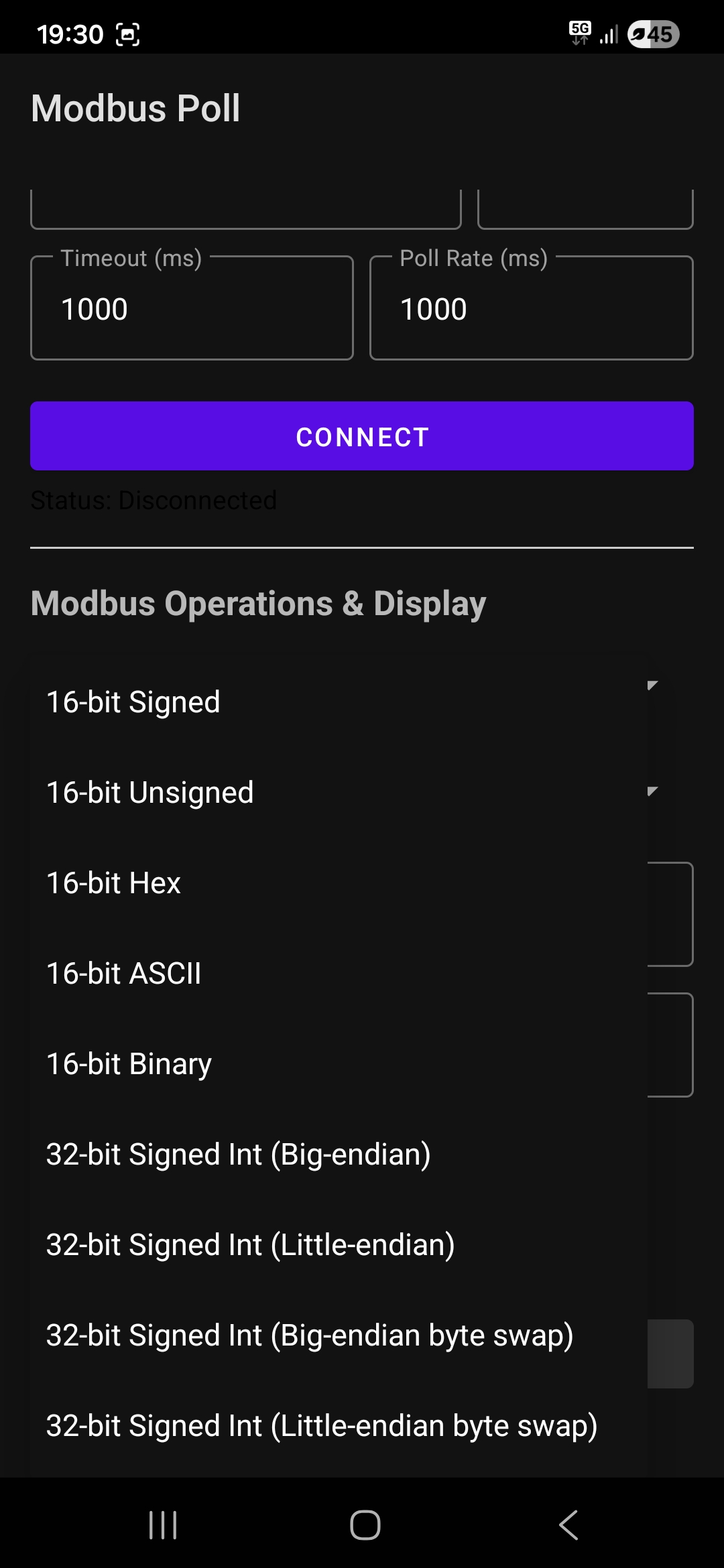
16-bit Formats:
- 16-bit Signed — standard signed integer (-32768 to 32767)
- 16-bit Unsigned — positive values only (0 to 65535)
- 16-bit Hex — raw hex view for debugging
- 16-bit ASCII — see character values in registers
- 16-bit Binary — view each bit individually
32-bit Formats:
- 32-bit Signed Int (Big-endian)
- 32-bit Signed Int (Little-endian)
- 32-bit Signed Int (Big-endian byte swap)
- 32-bit Signed Int (Little-endian byte swap)
The byte swap options are a big deal. Many devices store 32-bit values with swapped bytes. Without the right format, you get garbage data. Modbus Poll lets you pick the exact byte order your device uses.
How to Use Modbus Poll on Android
Here’s a quick walkthrough for first-time users.
Step 1: Connect to your network. Make sure your phone is on the same Wi-Fi network as your Modbus device.
Step 2: Open the app. Choose your connection type from the dropdown. For most setups, Modbus TCP/IP works fine.
Step 3: Enter your device details. Type in the IP address and port. Set the timeout and poll rate. A 1000 ms timeout and 1000 ms poll rate are good defaults.
Step 4: Hit Connect. The status will change from “Disconnected” to “Connected.”
Step 5: Set up your query. Choose the function code you need. Enter the Unit ID (slave address), the starting register address, and how many registers to read.
Step 6: Read the results. The app shows the values coming back from your device. Switch the data format to match how your device stores its data.
Step 7: Write values. If you need to write, enter your values in the write field. The app supports writing single or multiple values.
The 0-Based Addressing Option
One small feature that saves a lot of headaches: the “Use 0-based Addressing” checkbox. Some devices start counting registers at 0. Others start at 1. If your readings are off by one register, toggle this option and try again.
Who Is This App For?
Modbus Poll is built for people who work with industrial equipment:
- Automation engineers who need to test PLC registers on-site
- Maintenance technicians who need to verify sensor readings
- Commissioning teams who need to check device settings during startup
- System integrators who need a quick way to troubleshoot communication issues
- Students and hobbyists learning the Modbus protocol
Why Use a Phone Instead of a Laptop?
There are real advantages to having Modbus tools on your phone:
Speed. Pull out your phone, connect, and check a value in seconds. No boot time, no finding a desk, no plugging in cables.
Access. You can reach devices in tight spaces, up on catwalks, or inside cabinets where a laptop won’t fit.
Convenience. Your phone is always with you. Your laptop isn’t.
Simplicity. The app does one thing well. No complex setup. No license keys with 10-minute time limits.
Modbus Poll vs. Desktop Tools
Desktop tools like Modbus Poll for Windows (by Witte Software) are powerful but tied to a computer. They also come with trial restrictions — like a 10-minute connection limit that forces you to restart.
The Android version of Modbus Poll gives you freedom. It’s designed for mobile use from the start. No time limits. No restarts. Just connect and work.
Tips for Getting the Best Results
Keep your phone close to the Wi-Fi access point. A weak signal means slow responses and timeouts.
Start with the default timeout (1000 ms). If you get timeout errors, increase it to 2000 or 3000 ms.
Use the right data format. If register values look wrong, try a different format. A temperature reading of 25.5°C might show up as a large number if you’re using 16-bit signed instead of 32-bit float.
Check the Unit ID. Many devices default to Unit ID 1. But if you’re going through a gateway, you might need a different ID for each device.
Double-check your register addresses. Modbus documentation can be confusing. Some manuals use 1-based addresses. Others use 0-based. The app’s addressing toggle helps sort this out.
Common Use Cases
Reading PLC registers. Connect to your PLC and read holding registers to verify program values.
Checking sensor data. Read input registers from temperature sensors, pressure transmitters, or flow meters.
Writing setpoints. Change a VFD speed setpoint or a temperature controller target from your phone.
Verifying communication. Quickly test if a new device is responding on the network before diving into a full integration.
Field troubleshooting. A machine isn’t running right. Check the Modbus data to see what’s going on — without going back to the control room.
Download Modbus Poll for Android
Modbus Poll is available on the Google Play Store. Search for “Modbus Poll” or “Poll Modbus” and look for the app by DESAT Ingenieria.
Whether you’re commissioning a new system, troubleshooting an old one, or just learning the Modbus protocol, this app makes the job easier. It’s the Modbus tool that goes where you go.